
Image to Base64
Convert an image to a base64 data URI (or decode one back) — raw base64, data URI, HTML, or CSS.
Written by SamundraLast updated
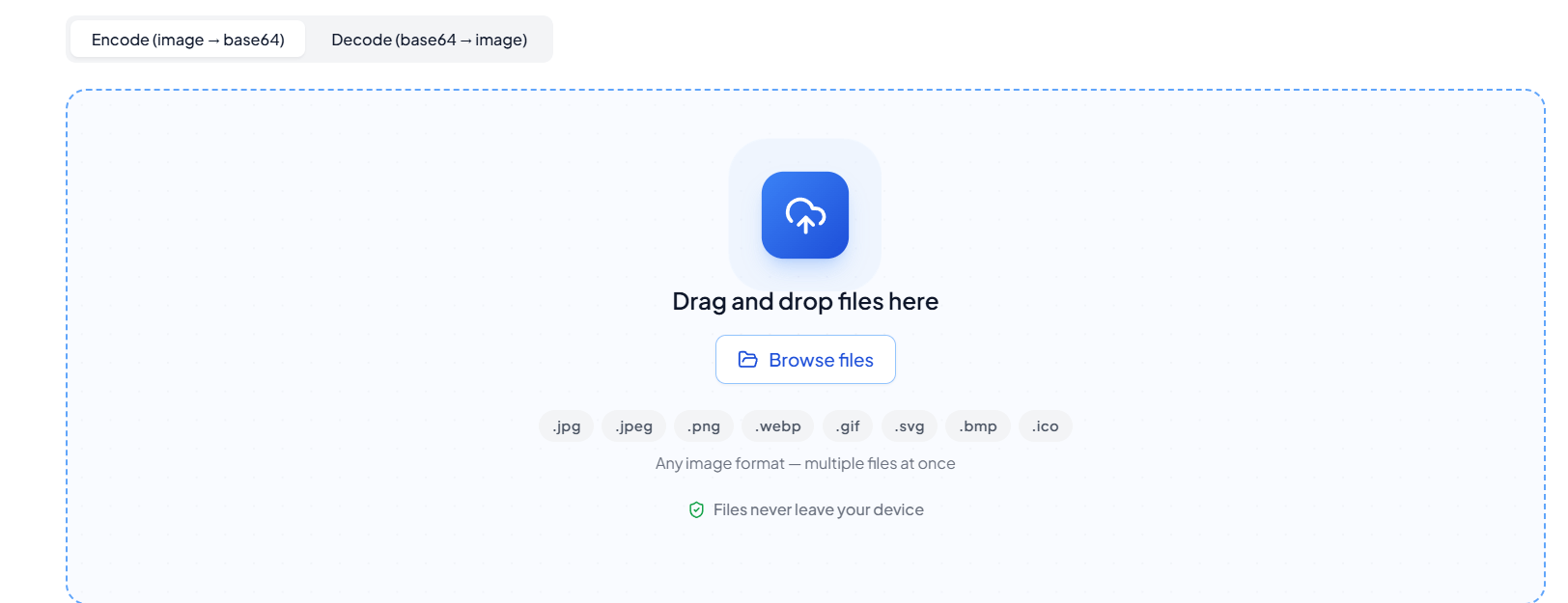
Drag and drop files here
Any image format — multiple files at once
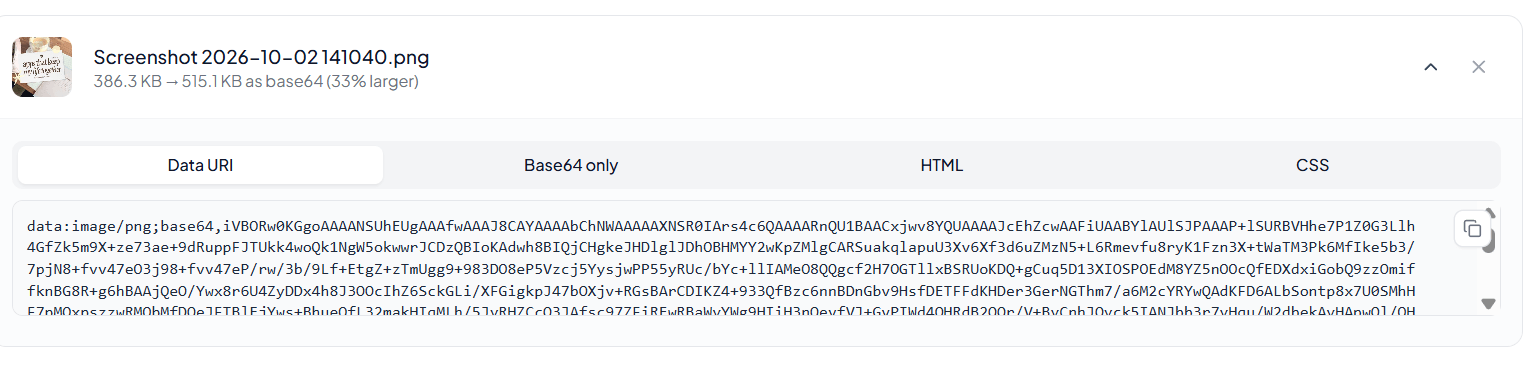
Your images are never uploaded anywhere — everything runs on your device. Base64 is always ~33% larger than the original file (that's just how encoding binary as text works), which matters most for larger images embedded directly in HTML/CSS.
No files yet
Add an image above to convert it to base64.
Related tools

Introduction
Image to Base64 Encoder and Decoder
Image to Base64 is an online tool that lets users quickly turn an image into a Base64-encoded string. This image encoder converts image files into encoded data using the Base64 format. This makes it easy to use images in websites, apps and other development projects.
The tool works as both an encoder and a decoder. You can use it to encode an image into Base64. You can also decode a Base64 string back into an image when needed. There is no need to install any software. Everything happens in your browser.
This tool supports image formats. It works with JPEG images JPG files, PNG files and SVG files. No matter if you need JPEG Base64, JPG Base64, PNG Base64 or SVG Base64 the conversion is simple and fast.
Why Use Image to Base64?
Base64 encoding is often used in web development. It lets you represent an image as a text string. Of linking to an image file developers can use an image data URL.. They can use a data URI. The encoded image can be placed directly into web pages.
For example a Base64-encoded image can be used with the HTML img src attribute. This is helpful when you want to include an image, icon or graphic in a web app. You don’t need to worry about file paths or external links.
The tool makes image encoding and decoding easier. It helps users who don’t want to work with binary-to-text encoding. Just upload your image. The tool will create the Base64 code for you.

Key Features
- Encode an image into Base64 format
- Convert images to Base64 in a few seconds
- Works as both a Base64 encoder and a Base64 decoder
- Handles PNG files and converts them to Base64
- Converts JPEG and JPG files into Base64
- Turns SVG files into Base64
- Creates image data URLs or URL data for images. Transforms an image into a data URI for web use
- Decodes Base64 into an image
- - Converts a Base64 string into an image when decoding is needed
- Supports HTML img tags that use Base64 in the src attribute
- Offers a binary to Base64 conversion process
- Helps users encode a file into Base64 format
- Works as a Base64 to file converter for supported file types
- Displays the generated Base64 string
- Image to Base64 Encoder Infographic
What Is Base64 Image Encoding?
Base64 is a way to turn data into text characters. When you convert an image to Base64, the image data is turned into a long text string. This method is sometimes called a 64-bit image. The correct term is Base64.
A Base64 sample image contains encoded data. That data can be decoded to recreate the picture. Base64 images are useful in web development, APIs, HTML, CSS, and certain web application projects.
However there is one downside. Base64 encoding increases the file size. The encoded text is usually 33% larger than the original image. So Base64 is best for images like icons or favicons.
Base64 Images for HTML and Web Pages
Developers can use HTML img Base64 code to show an image. They don’t need to link to an image file. The Base64 data can go directly into the src attribute of the img tag.
This approach is often called Base64 image src, Base64 img src or image to data URI. It is useful when you want to embed an image in a web page.
The tool helps users learn about Base64 in URLs. It shows how data URIs work. It generates the encoded text so you can see how it looks.
Supported Files, Limits & Output
Supported Input Formats:
- PNG (.png)
- JPG (.jpg)
- JPEG (.jpeg)
- SVG (.svg)
Limits:
Large image files may take longer to process
Base64 encoding increases file size compared to the original
Base64 works for small images and icons
Output:
Base64 encoded string
Image Data URL
Base64 image source for HTML src attribute
Decoded image file
Copy-ready Base64 code, for web development and web applications.
Try this Image publish checker
How to use
Upload Your Image
Drag and drop your image into the upload area or click Browse Files to select an image from your device.
Choose the Output Format
After uploading, choose Data URI, Base64 Only, HTML, or CSS depending on how you want to use the encoded image.
Copy the Base64 Code
The tool automatically converts your image to Base64. Click the copy button to copy the generated Base64 string or code.
Use the Generated Code
Paste the copied Base64 code into your website, HTML, CSS, web application, or other supported project.
Last updated:
Share this tool
Know someone who'd find it useful? Send it their way.